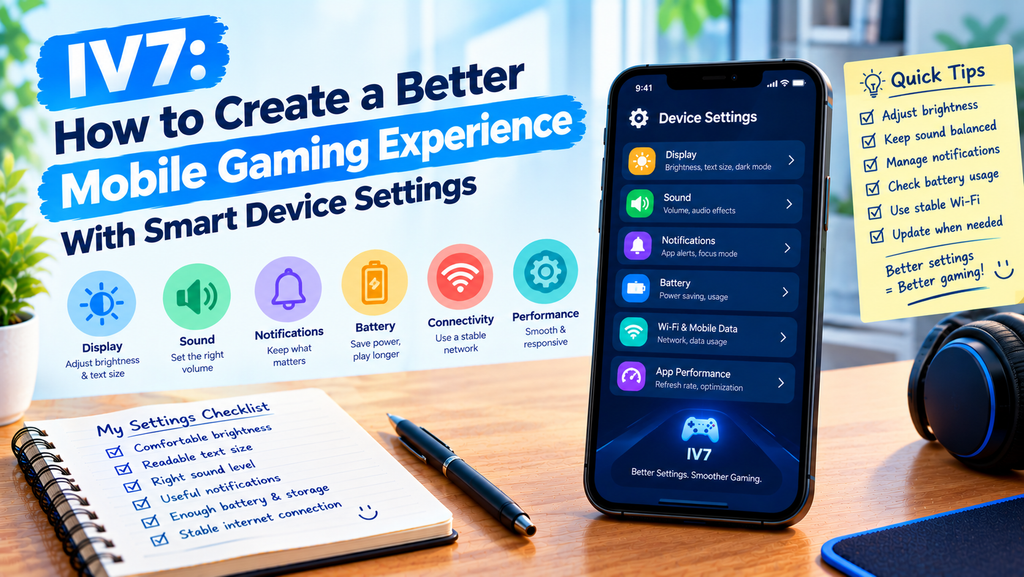
A mobile gaming experience depends on more than the app itself. The settings on your phone can affect how clearly you see the screen, how easily you control the interface, and how comfortably you use your device throughout the day.
For users of iv7, learning how to manage device settings can make everyday use feel more convenient. Small adjustments to display options, sound, notifications, and battery features may help you create an environment that suits your needs.
This guide covers practical phone settings to review before using the iv7 game. The suggestions are general mobile tips, so the exact options available will depend on your device and the app.
Why Your Phone Settings Deserve Attention
Many people use the default settings on a new phone without checking whether they fit their daily habits. These defaults may work well, but they are not always ideal for every situation.
A bright screen may be useful outdoors but uncomfortable in a dark room. Frequent notifications may be helpful during work but distracting during a gaming session. Loud audio may be enjoyable through headphones but unsuitable in a shared space.
Before changing anything in iv7, review the settings that affect your overall phone experience. You can make adjustments gradually and keep the changes that genuinely help.
1. Adjust the Display for Clear Viewing
Your display is the main way you interact with most mobile apps. A few simple adjustments can make text and controls easier to see.
Find a Comfortable Brightness Level
Set the brightness according to the room around you. In a bright environment, you may need a higher level to see the screen clearly. Indoors, a lower level may feel more comfortable.
Automatic brightness can help your phone adjust as lighting changes. If the screen keeps becoming brighter or darker at inconvenient times, check whether this feature is enabled and adjust it to your preference.
When using iv7, avoid assuming that maximum brightness always provides the best experience. Higher brightness can increase battery use and may cause discomfort in dim surroundings.
Review Text Size and Display Scaling
If labels or menus appear too small, look at your phone’s text-size and display-size settings. Increasing them may improve readability across supported apps.
Some screens may respond differently to these changes, so check that important buttons and labels remain visible. You do not need to change every display option at once.
2. Choose Sound Settings That Suit Your Environment
Sound can help you notice alerts and understand audio cues, but the right level depends on where you are.
Start with a moderate volume and adjust it according to your surroundings. If you use headphones, avoid setting the volume so high that nearby sounds become impossible to hear.
You can also review separate volume controls for media, calls, alarms, and notifications. Many phones manage these categories independently.
If the iv7 game includes audio controls, check the app’s own settings as well. App-level sound options may differ from the volume controls found in your phone’s settings.
In shared spaces, consider using a lower volume or muting unnecessary sounds. This helps you enjoy your session without disturbing other people.
3. Manage Notifications Before Opening an App
A notification can interrupt an activity at the wrong moment. Messages, reminders, and promotional alerts may appear even when you are focused on something else.
Separate Important Alerts From Distractions
Review which apps are allowed to send notifications. Keep essential alerts enabled, and consider reducing notifications that are not useful during your daily activities.
Some phones offer Focus, Do Not Disturb, or similar modes. These features can limit interruptions according to rules you choose.
Before using iv7, check how your notification settings work. Make sure you understand which calls or messages may still come through when a focus mode is active.
You do not need to disable every notification. The goal is to choose settings that help you stay aware of important information while reducing unnecessary interruptions.
4. Review Battery Settings Without Guesswork
Battery settings can help you understand how your phone uses power. Many devices show battery levels, recent usage, and which apps consume the most energy.
Check these details if your battery seems to drain faster than expected. Screen brightness, background activity, network use, and battery age can all influence battery life.
Some phones also include a battery-saver mode. This may reduce background activity or limit certain features to extend the remaining charge.
Keep in mind that battery-saving modes can change how some apps behave. If you notice an app responding differently after enabling one, review the mode’s settings rather than assuming the app is broken.
When using iv7, there is no need to change advanced battery options without a clear reason. Start with the built-in battery information and make only the adjustments you understand.
5. Understand Performance and Refresh-Rate Options
Certain phones provide display refresh-rate settings or performance modes. These options can influence how smoothly movement appears and how the device balances responsiveness with power use.
A higher refresh rate may make supported animations look smoother, but not every app takes advantage of it. It can also increase battery consumption on some devices.
Performance modes may prioritize responsiveness, while power-saving modes may limit certain activities. The names and effects of these settings vary by manufacturer.
If the iv7 game does not feel as smooth as expected, first check the connection, available storage, and whether other apps are running slowly. Changing advanced settings may not help if the cause is unrelated to display performance.
Use the options your phone provides and compare the results rather than expecting one setting to solve every issue.
6. Keep Connectivity Settings Practical
A stable connection matters when an app relies on online content. Your phone may offer Wi-Fi preferences, mobile-data controls, and options for managing background network activity.
Use a trusted Wi-Fi network when suitable, and check your mobile-data limits before downloading large files. If a page does not load, see whether other trusted apps have connection problems too.
Airplane mode disables wireless connections on many devices, although individual wireless features may sometimes be re-enabled separately. Do not use it if you need to remain connected.
Before downloading the iv7 apk latest version, verify the download source and check the file details provided by a trustworthy source. Changing network settings does not make an unverified file safe.
7. Save Your Preferred Settings for Everyday Use
Once you find settings that work well, avoid changing everything whenever an app behaves differently. A consistent setup makes it easier to notice when a real problem occurs.
You can keep a short personal checklist:
- Comfortable screen brightness.
- Readable text size.
- Suitable sound level.
- Useful notification controls.
- Enough battery and storage.
- A reliable network connection when needed.
If an update changes how the iv7 game looks or responds, review the relevant settings one at a time. This makes it easier to identify what has changed.
You should also revisit your settings after a major phone update, since some options may move or reset.
Final Thoughts
Your phone’s settings can shape how comfortable and convenient mobile gaming feels. Display adjustments, sound controls, notification management, battery information, and connectivity options are all worth understanding.
When using iv7, begin with the settings that affect you most. Make small changes, observe the results, and avoid advanced adjustments without a clear reason. If you plan to install the iv7 apk latest version, verify its source instead of relying on its name alone.
A well-organized phone setup does not need to be complicated. A few thoughtful choices can help you use your device in a way that better fits your needs.
Frequently Asked Questions
1. Which phone settings should I check before using IV7?
Start with brightness, text size, sound, notifications, battery level, storage, and internet connectivity. Adjust only the options that improve your experience.
2. Does higher screen brightness improve the IV7 game experience?
Not always. Brightness should match your surroundings. A lower level may be more comfortable indoors and can help reduce battery use.
3. Can battery-saver mode affect mobile apps?
It can. Depending on your phone, battery-saver mode may limit background activity or other functions. Review the settings if an app behaves differently after you enable it.
4. Should I enable the highest refresh rate for IV7?
Only if your device supports it and you prefer the result. Some apps may not use higher refresh rates, and the setting may increase battery consumption.
5. How can I check the IV7 APK latest version safely?
Use a source you can verify, review the available version and compatibility information, and avoid unfamiliar pages that make unsupported claims. A file name alone does not prove that an APK is genuine.