When an application asks for permission to use a phone feature, many users tap “Allow” without reading the request. This can happen during installation, account setup, or the first time a particular feature is opened.
However, every permission has a purpose, and users should understand that purpose before granting access. A mobile app does not automatically need every feature available on a smartphone.
People using iv7, iv7 game, and other mobile applications can make better decisions by learning how permissions work, what they control, and when access may be unnecessary.
What Are Mobile App Permissions?
App permissions control which parts of a phone an application can access. They act as a boundary between the application and certain device features or information.
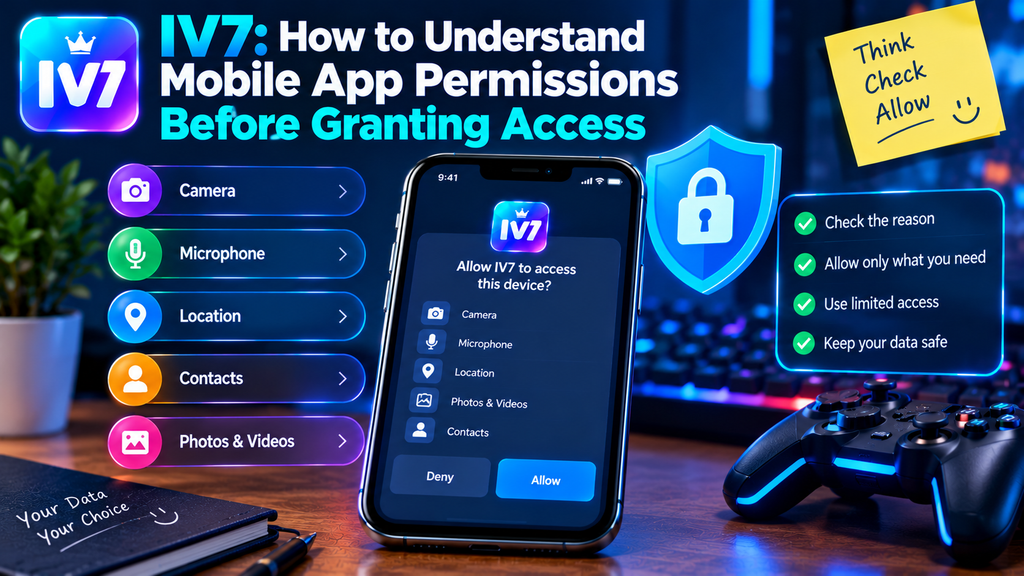
Depending on the operating system, common permissions include:
- Camera access.
- Microphone access.
- Location information.
- Contacts.
- Photos and videos.
- Notifications.
- Files and media.
- Nearby devices.
Some permissions are required for a specific function, while others may be optional. Their availability and behavior depend on the phone’s operating system and application design.
Understanding Common Permission Categories
Knowing what each permission controls makes it easier to decide whether a request makes sense.
Camera Permission
Camera access allows an application to use the phone’s camera when permitted.
This may be necessary for applications that offer photo capture, video recording, or visual scanning. A basic gaming application may not need camera access unless it provides a feature that clearly requires it.
If an app requests camera access without an understandable reason, pause and review its purpose.
Microphone Permission
Microphone access allows an application to receive audio through the phone’s microphone.
It may be needed for voice communication, recording, or other audio-based functions. If you do not use a feature that requires voice input, there may be no reason to grant this permission.
Location Permission
Location access can provide information about the phone’s approximate or precise position.
Some services use location for region-based functions. However, users should check whether the requested access is necessary and whether approximate location is sufficient.
Contacts Permission
Contacts access allows an application to read information from the phone’s address book, depending on the permission granted.
This information may include names and phone numbers. Users should be especially careful with this permission because contact lists can contain details about other people.
Photos and Files Permission
Some applications need access to selected images, documents, or other files.
Modern operating systems may allow users to select specific files instead of giving an application broad access to stored content.
When available, limited access is often a more controlled option.
How to Decide Whether a Permission Is Necessary
A permission request should have a clear connection to the feature being used.
For example, a video recording feature may reasonably require camera and microphone access. A simple setting change usually does not explain why an application needs access to personal contacts.
Before selecting an option, ask three questions:
- What feature needs this permission?
- Can I use the application without granting it?
- Is there an option to provide limited access?
These questions help users avoid approving requests automatically.
What Happens When You Deny a Permission?
Denying permission does not always prevent an application from working. It may only disable the feature connected to that permission.
For example:
- Denying camera access may disable photo capture.
- Denying microphone access may prevent voice recording.
- Denying location access may limit location-based services.
- Denying notification access may stop certain alerts.
The actual result depends on how the application is designed.
If iv7 requests a permission and a feature stops working after you deny it, check the app’s explanation before changing your decision. Do not grant access simply because a message pressures you to do so.
How to Review Permissions on an Android Phone
Android provides settings that allow users to review and change application permissions.
The exact menu names can differ between phone brands and Android versions, but the general process is straightforward.
Review Permissions for One Application
- Open your phone’s Settings.
- Go to Apps or Applications.
- Select the relevant application.
- Open its Permissions section.
- Review the allowed and denied permissions.
- Change access based on your needs.
You may also find a permission manager that groups access by category rather than by application.
Check Permissions That Are No Longer Needed
Some permissions may remain enabled even after you stop using a particular feature.
Review them periodically and remove access that is no longer necessary. Keep in mind that changing a permission may affect how a feature works.
Temporary Access and Limited Permissions
Some Android versions provide more flexible permission controls.
For example, users may be able to:
- Allow access only while using an application.
- Grant one-time access.
- Select specific photos or files.
- Allow approximate rather than precise location.
- Deny access completely.
These options can reduce unnecessary access while still allowing useful features to work.
When installing an iv7 apk, review the permission information shown by your device. The permission list may differ depending on the application package, Android version, and available features.
Warning Signs in Permission Requests
Not every permission request is suspicious. However, certain situations deserve additional attention.
Be cautious when:
- An unrelated feature requests access to sensitive information.
- The application repeatedly asks for the same permission without explanation.
- A download page claims that every permission must be enabled.
- An unfamiliar application requests extensive device access.
- The permission description does not match the feature you are using.
For example, a request for contact access during a basic display-setting change would deserve a closer look.
If something seems unclear, deny the request temporarily and check the application’s official information.
How App Updates Can Affect Permissions
An application update may introduce new functions that require additional permissions. It may also change how an existing permission is used.
Before updating, review the available release information when possible.
After installing an iv7 game apk latest version, check the application’s permissions again if you notice a new request or an unexpected change.
Do not assume that an update is safe simply because it has a newer version number. Download installation files only from a source you can verify.
Build a Better Permission Management Routine
Managing permissions does not require checking every setting every day. A simple review every few weeks or after major app updates is usually a practical starting point.
Use this checklist:
- Review permissions before granting access.
- Check the reason behind each request.
- Prefer limited access when available.
- Remove permissions that are no longer needed.
- Review unfamiliar applications.
- Check permissions after major updates.
- Avoid installing apps from untrusted sources.
- Never grant access because of pressure from an unknown message.
This approach gives users more control without making normal phone use complicated.
Final Thoughts
Mobile app permissions determine how applications interact with certain phone features and personal information. Granting access without understanding the request can create unnecessary exposure.
Users of iv7 game should review each permission carefully, consider whether it matches the feature being used, and take advantage of limited-access options when available.
The goal is not to deny every request. It is to grant only the access that makes sense. A few careful decisions can make everyday mobile app use more controlled and predictable.
Frequently Asked Questions
1. What are app permissions on Android?
App permissions control which phone features and information an application can access, such as the camera, microphone, location, and files.
2. Is it safe to deny unnecessary permissions?
Yes. Denying a permission may disable the related feature, but it does not automatically make an application unusable.
3. Can I change app permissions after installation?
Yes. Android allows users to review and change permissions through the phone’s application settings.
4. Should I allow every permission requested by IV7?
No. Review each request and decide whether it is connected to a feature you actually use. Do not approve permissions automatically.
5. What does allow only while using the app mean?
It allows an application to use a particular permission while it is actively being used, subject to the operating system’s rules.
6. Can an app update introduce new permission requests?
Yes. New or changed features may require additional access. Review new requests before approving them.
7. Does installing the IV7 APK latest version make all permissions necessary?
No. A newer version does not automatically justify every permission. Check each request based on its actual purpose and the application’s available features.