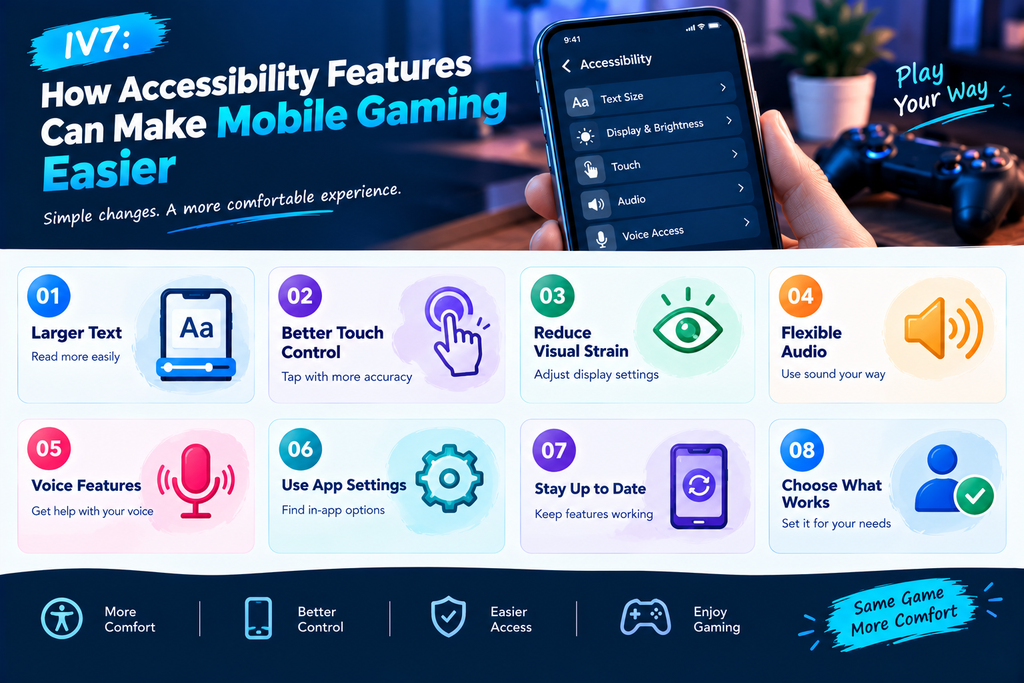
Everyone uses a mobile phone in a different way. Some people prefer larger text, while others find small buttons or fast-moving screens hard to manage. A few changes to your phone settings can make daily mobile gaming feel more comfortable and less stressful.
When using iv7, it helps to understand which accessibility tools are available on your device. These tools can make reading, touching, hearing, and moving around the screen easier. You do not need to change every setting. Start with the features that solve a problem for you.
Start by Noticing What Feels Difficult
Before changing anything, think about the parts of a game that feel uncomfortable. You may have trouble reading small words, tapping the right button, or following sounds. Knowing the problem helps you choose a useful setting.
Find the Small Things That Slow You Down
Pay attention during a normal session. If you often move your phone closer to your face to read text, larger text may help. If you keep tapping the wrong area, touch settings could be worth exploring.
Write down one or two things you want to improve. This keeps the process clear and prevents you from changing settings that already work well.
Make Text Easier to Read
Small text can make menus and instructions hard to understand. Most modern phones include display options that let you change text size. Some devices also offer bold text or display zoom.
Choose a Text Size That Works for You
Open your phone’s display or accessibility settings and look for text-size options. Increase the size a little, then check how it looks in different apps.
Very large text may cause some menus to show fewer words at once. Try a size that improves reading without making the rest of the screen difficult to use.
If you use the iv7 game, check whether its menus remain clear after changing your phone settings. Not every app responds to system text changes in the same way.
Improve Touch Interaction
Touchscreens can be tricky when buttons are close together. A small mistake may open the wrong menu or select an unwanted option. Accessibility settings can sometimes help you control how the phone responds to taps.
Explore Touch and Hold Options
Some phones let you adjust how long you must touch the screen before a press-and-hold action begins. This can help if you often trigger actions by accident.
Other devices offer options for handling repeated taps or improving touch response. The names and availability of these features vary by phone model and operating system.
Change one option at a time. Test it in a safe part of the app before relying on it during an important action.
Reduce Visual Strain
Bright colors, low contrast, and fast animations can make a screen harder for some people to follow. Your phone may include tools that adjust color display, contrast, or motion.
Try Display Options Carefully
Color correction and contrast settings can help some users distinguish screen elements. Display zoom may also make certain details easier to see.
These changes affect more than gaming, so check how your other apps look afterward. If a setting makes ordinary phone use harder, return it to its previous state.
Some phones also offer options to reduce animations. These may change how menus move between screens, although they will not necessarily remove movement inside a game.
Make Audio More Flexible
Sound can provide useful information, but not everyone wants to rely on it. You may play in a quiet place, have difficulty hearing certain sounds, or prefer to understand information visually.
Check Your Phone’s Audio Tools
Some phones include mono audio, which combines left and right audio channels. This may help when stereo sound is difficult to follow. Your device may also offer hearing-related settings or sound adjustments.
Captions can be useful when an app or video supports them. However, captions are not available for every game sound, alert, or spoken instruction.
For the iv7 game apk latest version, do not assume that every audio or caption feature will be available. Check the app’s own options and your phone’s settings to see what works.
Use Voice Features When Helpful
Typing and tapping are not always the easiest ways to control a phone. Built-in voice tools can help with some everyday actions, such as opening apps, dictating text, or navigating supported phone features.
Learn What Your Device Can Do
Look for voice access, voice control, or speech input in your phone’s accessibility settings. The exact features depend on your device and language.
Voice controls may not work inside every game. They can still be useful before or after a session, such as when opening settings or entering a search.
Be aware of your surroundings when using voice features. If you are in a shared or public place, speaking commands aloud may not be practical.
Make One Change at a Time
Changing several settings at once makes it hard to know which one helped. It can also make your phone feel unfamiliar.
Choose one feature, use it for a short period, and decide whether it improves your experience. If it does, keep it. If not, return to the earlier setting and try another option.
You can keep a short note of settings that work well. This is useful if you reset your phone or change devices later.
Check Accessibility After App or Phone Updates
An app or operating system update may change how certain settings behave. A text size that worked before might look different, or a menu could be arranged in a new way.
After an update, open the app and check the features you rely on most. If something no longer works as expected, review your phone settings and the app’s available options.
When looking for the iv7 apk latest version or iv7 apk, use a trustworthy source and check that the file is intended for your device. Accessibility features cannot make an unsafe or incompatible download safe.
Look for Options Inside the App
Your phone’s accessibility tools are only one part of the picture. Some apps include their own settings for text, sound, visual effects, or controls. Others may have only a few customization options.
Open the app’s settings and review the available choices. Avoid assuming a feature exists until you can confirm it on your own device.
If a setting is missing, your phone may still offer another way to improve everyday use. The goal is to find practical options rather than make every app behave in exactly the same way.
FAQs
What are mobile accessibility features?
Accessibility features are tools that help people use a phone in ways that suit their needs. They may include larger text, touch adjustments, audio tools, voice controls, or display changes.
Can accessibility settings work with IV7?
Some phone-level settings may affect how an app looks or responds, but results vary by device and app. Check your phone and the app’s own settings to confirm which features work.
Should I change all accessibility settings?
No. Start with the feature that addresses your main difficulty. Changing one option at a time makes it easier to understand the result.
Where can I find accessibility options?
On most phones, accessibility options are available in the main Settings app. The menu name and available features depend on your operating system and device.
Final Thoughts
Mobile gaming should fit the person using the phone, not the other way around. A small change to text size, touch response, audio, or display settings may make a noticeable difference in everyday use.
When using iv7, take a little time to explore the options available on your device. Test changes slowly, keep the settings that help, and remember that features can vary across phones and app versions. A setup that matches your needs can make each session easier to manage.